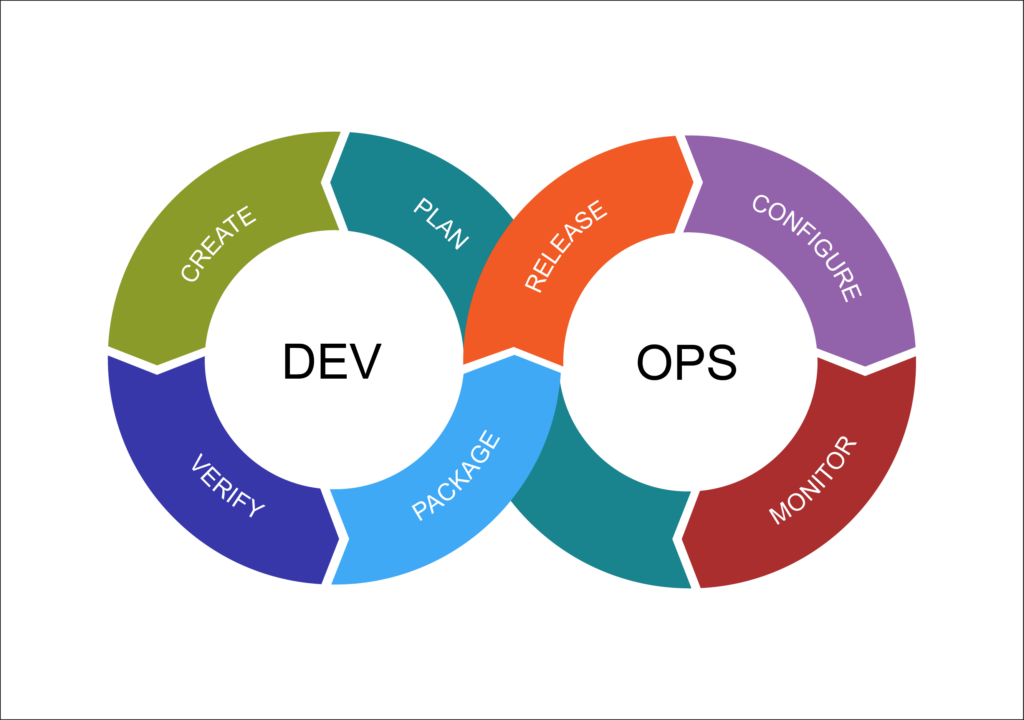
CI/CD是持续集成(Continuous Integration)和持续交付(Continuous Delivery)的缩写。这是一种软件开发实践,旨在通过自动化和持续的过程改进软件交付的速度和质量。经过10几天的摸索,终于对CICD有了一个熟悉的思路,下面就来详细说说部署流程与解决方案。
- 安装gitlab
#安装依赖
sudo yum install -y curl policycoreutils-python openssh-server perl
sudo systemctl enable sshd
sudo systemctl start sshd
#配置镜像
curl -fsSL https://packages.gitlab.cn/repository/raw/scripts/setup.sh | /bin/bash
#开始安装,此处的ip换成你自己的IP
sudo EXTERNAL_URL="http://192.168.44.103" yum install -y gitlab-jh
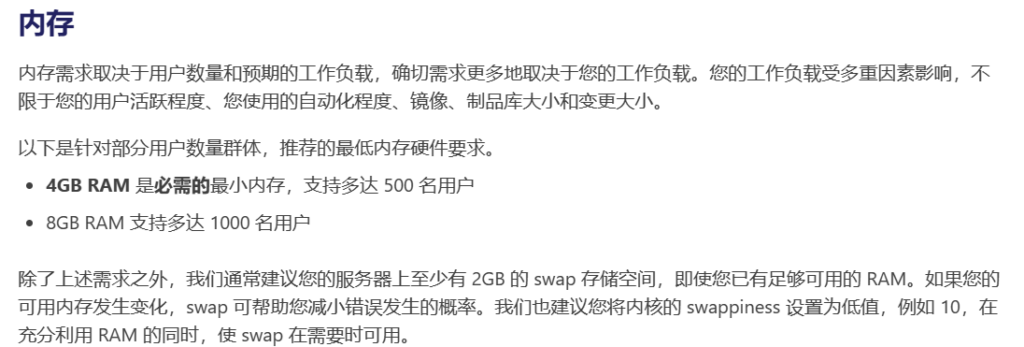
根据官方文档,显示,你的服务器的内存必须大于等于4G。在进入web界面时可能会出现502的情况,不用慌张,等gitlab初始化完成就好了。密码的初始位置位于/etc/gitlab/initial_root_password。
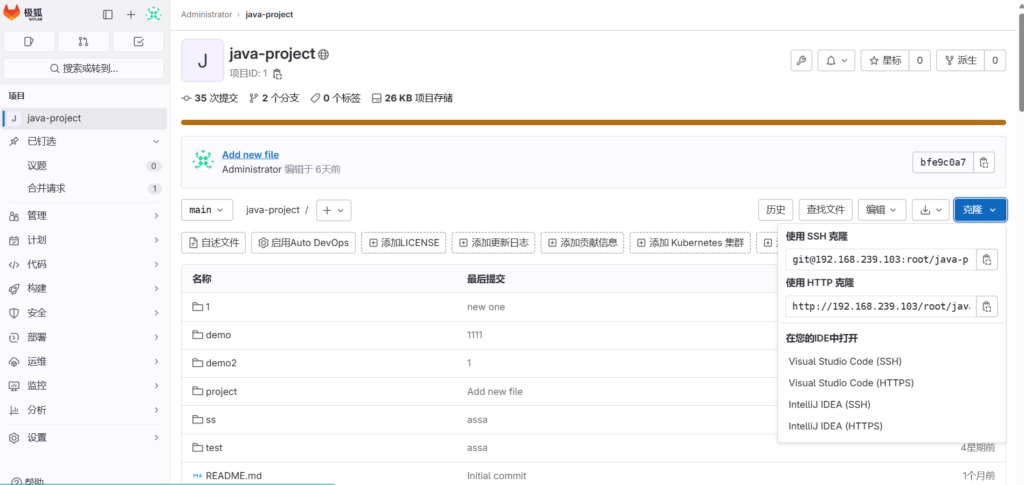
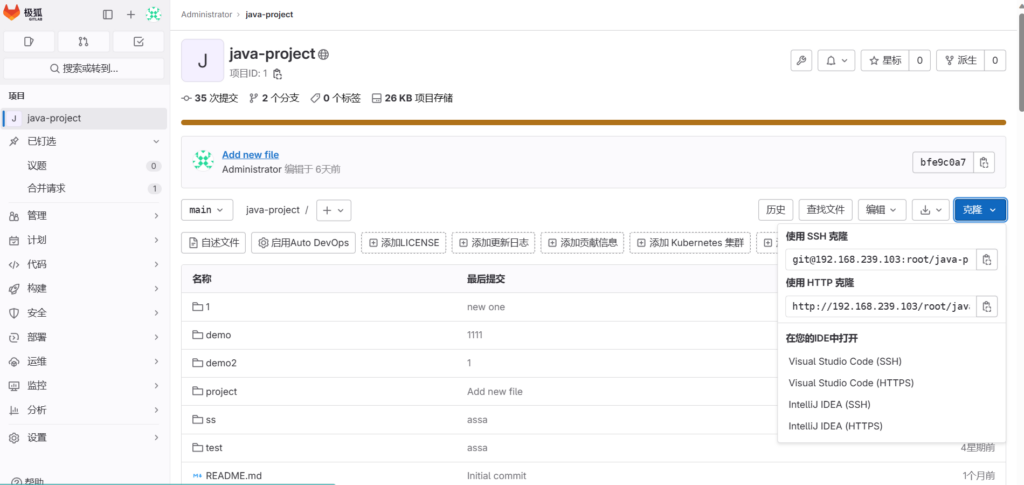
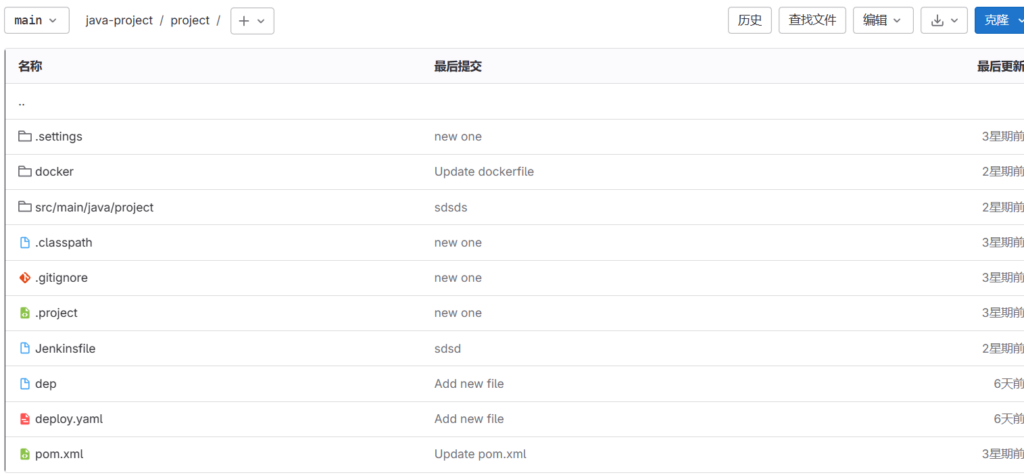
创建一个你自己的git仓库,然后会出现类似于我这样的界面,在界面右边克隆选项中有你的项目仓库的git地址,选择使用http复制就好了。注意,你还需要使用ide吧你的代码提交到gitlab服务器,比如eclipse,很简单的,此处我就不进行阐述了。
- 2 安装Jenkins
机器要求:内存建议大于512MB和10GB的硬盘空间。
下载java11,下载java11!!!!!!下载Jenkins新版本,下载Jenkins新版本!!!我在这磕了好久
#检索可用包
yum search java|grep "jdk11"
#安装jdk
yum install java-11-openjdk.x86_64
配置文件位于~/.jenkins,初始密码在启动jenkins时会出现在控制台上。
- 3 安装maven和git
maven和git都安装在jenkins服务器上
由于国内墙的原因,需要修改一下/usr/local/maven/conf/settings.xml这个文件,让它从阿里云拉取镜像
<?xml version="1.0" encoding="UTF-8"?>

<!--
Licensed to the Apache Software Foundation (ASF) under one
or more contributor license agreements.  See the NOTICE file
distributed with this work for additional information
regarding copyright ownership.  The ASF licenses this file
to you under the Apache License, Version 2.0 (the
"License"); you may not use this file except in compliance
with the License.  You may obtain a copy of the License at

    http://www.apache.org/licenses/LICENSE-2.0

Unless required by applicable law or agreed to in writing,
software distributed under the License is distributed on an
"AS IS" BASIS, WITHOUT WARRANTIES OR CONDITIONS OF ANY
KIND, either express or implied.  See the License for the
specific language governing permissions and limitations
under the License.
-->

<!--
 | This is the configuration file for Maven. It can be specified at two levels:
 |
 |  1. User Level. This settings.xml file provides configuration for a single user,
 |                 and is normally provided in ${user.home}/.m2/settings.xml.
 |
 |                 NOTE: This location can be overridden with the CLI option:
 |
 |                 -s /path/to/user/settings.xml
 |
 |  2. Global Level. This settings.xml file provides configuration for all Maven
 |                 users on a machine (assuming they're all using the same Maven
 |                 installation). It's normally provided in
 |                 ${maven.conf}/settings.xml.
 |
 |                 NOTE: This location can be overridden with the CLI option:
 |
 |                 -gs /path/to/global/settings.xml
 |
 | The sections in this sample file are intended to give you a running start at
 | getting the most out of your Maven installation. Where appropriate, the default
 | values (values used when the setting is not specified) are provided.
 |
 |-->
<settings xmlns="http://maven.apache.org/SETTINGS/1.0.0"
          xmlns:xsi="http://www.w3.org/2001/XMLSchema-instance"
          xsi:schemaLocation="http://maven.apache.org/SETTINGS/1.0.0 http://maven.apache.org/xsd/settings-1.0.0.xsd">
  <!-- localRepository
   | The path to the local repository maven will use to store artifacts.
   |
   | Default: ${user.home}/.m2/repository
  <localRepository>/path/to/local/repo</localRepository>
  -->
  <localRepository>${user.home}/.m2/repository</localRepository>
  <!-- interactiveMode
   | This will determine whether maven prompts you when it needs input. If set to false,
   | maven will use a sensible default value, perhaps based on some other setting, for
   | the parameter in question.
   |
   | Default: true
  <interactiveMode>true</interactiveMode>
  -->

  <!-- offline
   | Determines whether maven should attempt to connect to the network when executing a build.
   | This will have an effect on artifact downloads, artifact deployment, and others.
   |
   | Default: false
  <offline>false</offline>
  -->

  <!-- pluginGroups
   | This is a list of additional group identifiers that will be searched when resolving plugins by their prefix, i.e.
   | when invoking a command line like "mvn prefix:goal". Maven will automatically add the group identifiers
   | "org.apache.maven.plugins" and "org.codehaus.mojo" if these are not already contained in the list.
   |-->
  <pluginGroups>
    <!-- pluginGroup
     | Specifies a further group identifier to use for plugin lookup.
    <pluginGroup>com.your.plugins</pluginGroup>
    -->
    <pluginGroup>org.mortbay.jetty</pluginGroup>
  </pluginGroups>

  <!-- proxies
   | This is a list of proxies which can be used on this machine to connect to the network.
   | Unless otherwise specified (by system property or command-line switch), the first proxy
   | specification in this list marked as active will be used.
   |-->
  <proxies>
    <!-- proxy
     | Specification for one proxy, to be used in connecting to the network.
     |
    <proxy>
      <id>optional</id>
      <active>true</active>
      <protocol>http</protocol>
      <username>proxyuser</username>
      <password>proxypass</password>
      <host>proxy.host.net</host>
      <port>80</port>
      <nonProxyHosts>local.net|some.host.com</nonProxyHosts>
    </proxy>
    -->
  </proxies>

  <!-- servers
   | This is a list of authentication profiles, keyed by the server-id used within the system.
   | Authentication profiles can be used whenever maven must make a connection to a remote server.
   |-->
  <servers>
    <!-- server
     | Specifies the authentication information to use when connecting to a particular server, identified by
     | a unique name within the system (referred to by the 'id' attribute below).
     |
     | NOTE: You should either specify username/password OR privateKey/passphrase, since these pairings are
     |       used together.
     |
    <server>
      <id>deploymentRepo</id>
      <username>repouser</username>
      <password>repopwd</password>
    </server>
    -->

    <!-- Another sample, using keys to authenticate.
    <server>
      <id>siteServer</id>
      <privateKey>/path/to/private/key</privateKey>
      <passphrase>optional; leave empty if not used.</passphrase>
    </server>
    -->
    <server>
        <id>releases</id>
        <username>ali</username>
        <password>ali</password>
      </server>
      <server>
        <id>Snapshots</id>
        <username>ali</username>
        <password>ali</password>
      </server>
  </servers>

  <!-- mirrors
   | This is a list of mirrors to be used in downloading artifacts from remote repositories.
   |
   | It works like this: a POM may declare a repository to use in resolving certain artifacts.
   | However, this repository may have problems with heavy traffic at times, so people have mirrored
   | it to several places.
   |
   | That repository definition will have a unique id, so we can create a mirror reference for that
   | repository, to be used as an alternate download site. The mirror site will be the preferred
   | server for that repository.
   |-->
  <mirrors>
    <!-- mirror
     | Specifies a repository mirror site to use instead of a given repository. The repository that
     | this mirror serves has an ID that matches the mirrorOf element of this mirror. IDs are used
     | for inheritance and direct lookup purposes, and must be unique across the set of mirrors.
     |
    <mirror>
      <id>mirrorId</id>
      <mirrorOf>repositoryId</mirrorOf>
      <name>Human Readable Name for this Mirror.</name>
      <url>http://my.repository.com/repo/path</url>
    </mirror>
     -->
    <mirror>
      <!--This sends everything else to /public -->
      <id>nexus</id>
      <mirrorOf>*</mirrorOf>
      <url>http://maven.aliyun.com/nexus/content/groups/public/</url>
    </mirror>
    <mirror>
      <!--This is used to direct the public snapshots repo in the
          profile below over to a different nexus group -->
      <id>nexus-public-snapshots</id>
      <mirrorOf>public-snapshots</mirrorOf>
      <url>http://maven.aliyun.com/nexus/content/repositories/snapshots/</url>
    </mirror>
    <mirror>
      <!--This is used to direct the public snapshots repo in the
          profile below over to a different nexus group -->
      <id>nexus-public-snapshots1</id>
      <mirrorOf>public-snapshots1</mirrorOf>
      <url>https://artifacts.alfresco.com/nexus/content/repositories/public/</url>
    </mirror>
  </mirrors>

  <!-- profiles
   | This is a list of profiles which can be activated in a variety of ways, and which can modify
   | the build process. Profiles provided in the settings.xml are intended to provide local machine-
   | specific paths and repository locations which allow the build to work in the local environment.
   |
   | For example, if you have an integration testing plugin - like cactus - that needs to know where
   | your Tomcat instance is installed, you can provide a variable here such that the variable is
   | dereferenced during the build process to configure the cactus plugin.
   |
   | As noted above, profiles can be activated in a variety of ways. One way - the activeProfiles
   | section of this document (settings.xml) - will be discussed later. Another way essentially
   | relies on the detection of a system property, either matching a particular value for the property,
   | or merely testing its existence. Profiles can also be activated by JDK version prefix, where a
   | value of '1.4' might activate a profile when the build is executed on a JDK version of '1.4.2_07'.
   | Finally, the list of active profiles can be specified directly from the command line.
   |
   | NOTE: For profiles defined in the settings.xml, you are restricted to specifying only artifact
   |       repositories, plugin repositories, and free-form properties to be used as configuration
   |       variables for plugins in the POM.
   |
   |-->
   <profiles>
    <profile>
      <id>development</id>
      <repositories>
        <repository>
          <id>central</id>
          <url>http://central</url>
          <releases><enabled>true</enabled><updatePolicy>always</updatePolicy></releases>
          <snapshots><enabled>true</enabled><updatePolicy>always</updatePolicy></snapshots>
        </repository>
      </repositories>
     <pluginRepositories>
        <pluginRepository>
          <id>central</id>
          <url>http://central</url>
          <releases><enabled>true</enabled><updatePolicy>always</updatePolicy></releases>
          <snapshots><enabled>true</enabled><updatePolicy>always</updatePolicy></snapshots>
        </pluginRepository>
      </pluginRepositories>
    </profile>
    <profile>
      <!--this profile will allow snapshots to be searched when activated-->
      <id>public-snapshots</id>
      <repositories>
        <repository>
          <id>public-snapshots</id>
          <url>http://public-snapshots</url>
          <releases><enabled>false</enabled></releases>
          <snapshots><enabled>true</enabled><updatePolicy>always</updatePolicy></snapshots>
        </repository>
      </repositories>
     <pluginRepositories>
        <pluginRepository>
          <id>public-snapshots</id>
          <url>http://public-snapshots</url>
          <releases><enabled>false</enabled></releases>
          <snapshots><enabled>true</enabled><updatePolicy>always</updatePolicy></snapshots>
        </pluginRepository>
      </pluginRepositories>
    </profile>
  </profiles>

   <activeProfiles>
    <activeProfile>development</activeProfile>
    <activeProfile>public-snapshots</activeProfile>
   </activeProfiles>

  <!-- activeProfiles
   | List of profiles that are active for all builds.
   |
  <activeProfiles>
    <activeProfile>alwaysActiveProfile</activeProfile>
    <activeProfile>anotherAlwaysActiveProfile</activeProfile>
  </activeProfiles>
  -->
</settings>
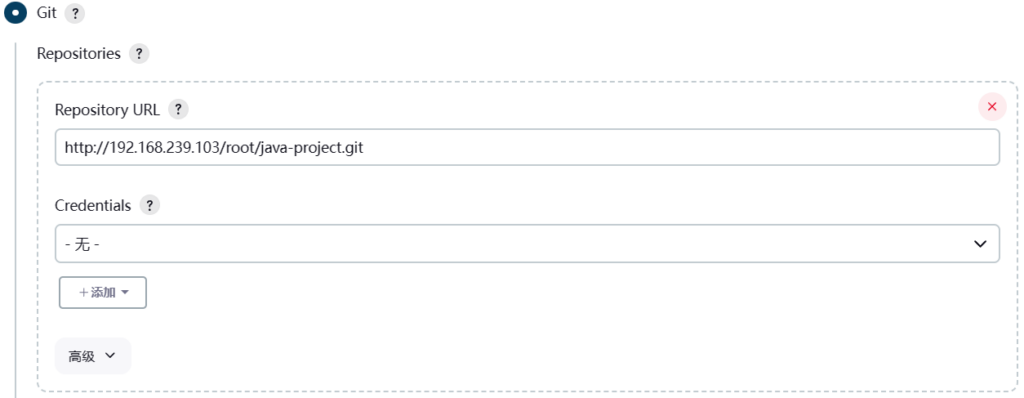
maven官方下载地址:https://maven.apache.org/,git同理,去官网下。然后在jenkins中配置好你的git仓库。
注意,在指定分支时应使用main分支,在现在的版本中main分支才是主分支,而不是master。
配置maven,地址就填你下载maven到哪里的地址,再给maven起个名字,我起的是maven3
pom.xml配置
pom.xml是 Maven(一种用于构建和管理Java项目的工具)项目中的 项目对象模型文件。它是一个XML文件,包含了有关Maven项目的配置信息,用于描述项目的结构、依赖关系、构建目标等,是maven项目自带的文件。此处选择你的pom.xml文件处于项目文件的哪里。比如说我需要构建的项目名叫project,该project下有一个pom.xml文件。
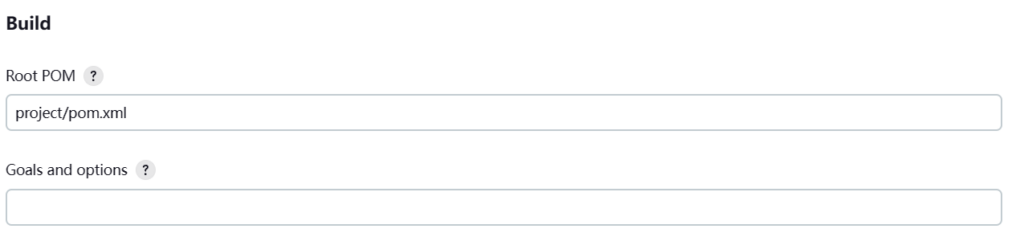
到这里,cicd相关软件的部署大致也成功了,接下来讲解实操案例,该案例主要是将jar包直接打包到docker容器内,然后通过k8s进行部署
准备:
一台Jenkins服务器,一台gitlab服务器,一台测试服务器,两台Jenkins服务器的克隆,一共5台服务器。
eclipse中编写Dockerfile并git push到我的gitlab
FROM openjdk:11
WORKDIR /root
ADD /project*.jar /root/app.jar
ENTRYPOINT ["sh", "-c", "sleep 10000"]
EXPOSE 8080
在gitlab上编写deploy.yaml文件
apiVersion: apps/v1
kind: Deployment
metadata:
  name: test
spec:
  replicas: 2
  selector:
    matchLabels:
      app: promethus
  template:
    metadata:
      labels:
        app: promethus
    spec:
      containers:
        - name: promethus
          image: 192.168.239.100:8080/repo/portainer:11.04
          imagePullPolicy: IfNotPresent
      restartPolicy: Always
      imagePullSecrets:
        - name: docker-login
在测试服务器上编写shell文件
veta=$(date +%m.%d)

docker login -u admin -p Harbor12345 192.168.239.100:8080

docker push 192.168.239.100:8080/repo/portainer:$veta

kubectl apply -f deploy.yaml
该文件旨在包含jar包的镜像到harbor私服库上,并执行deploy.yaml文件。
publish over ssh
在Jenkins的系统管理->插件管理中搜索publish over ssh并进行下载,通过这个插件,你可以自动地将本地开发环境或构建服务器上的更改通过SSH(安全壳层协议)推送(或“发布”)到远程服务器。SSH是一种网络协议,可以在不安全的网络上提供安全的通道,因此它是安全传输数据的流行选择。安装成功后,在Configure System菜单里往下拉
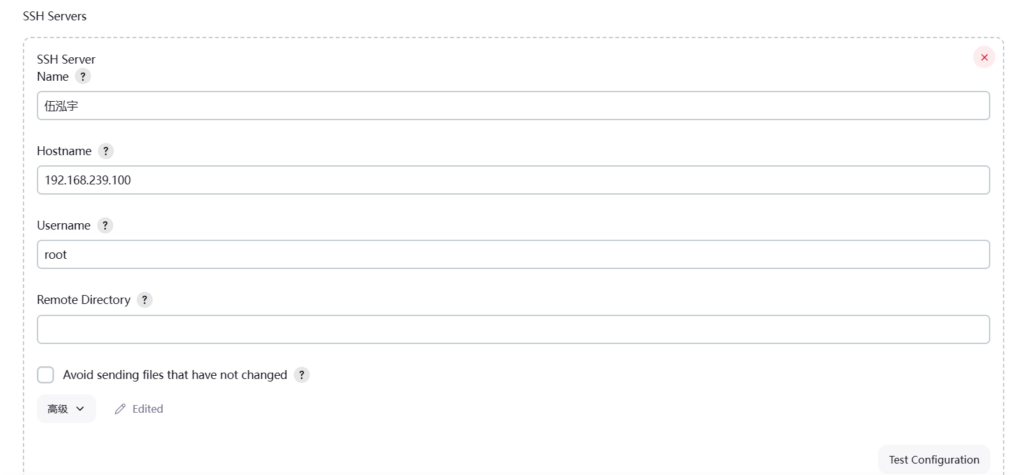
Hostname填你的测试服务器的地址,Username填root,注意,以后的Remote Directory默认都是服务器的~/目录。
在Jenkins中新建任务,选择maven项目,创建一个新的任务,进入该任务的配置页面中进行配置
配置git仓库
构建触发器
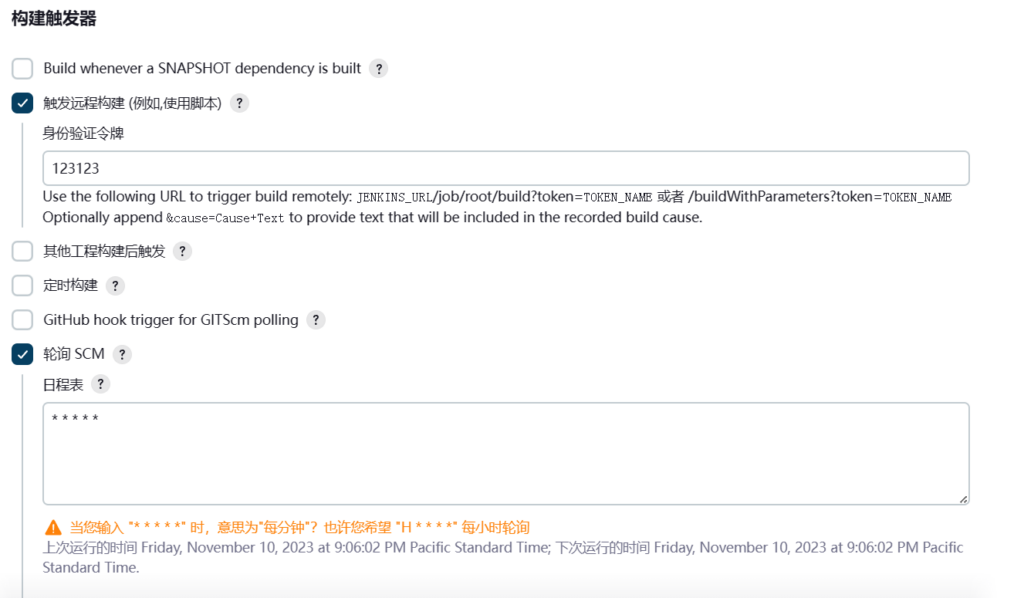
输入你想要输入的身份令牌,该令牌用于可以通过url的方式向Jenkins发送构建命令,而不需要进入Jenkins页面通过鼠标点击才能完成,所以可以使用gitlab的webhook回调钩子调起Jenkins的启动任务接口。在使用这一功能时,我们需要先下载Build Token Trigger插件,该插件是这样描述的
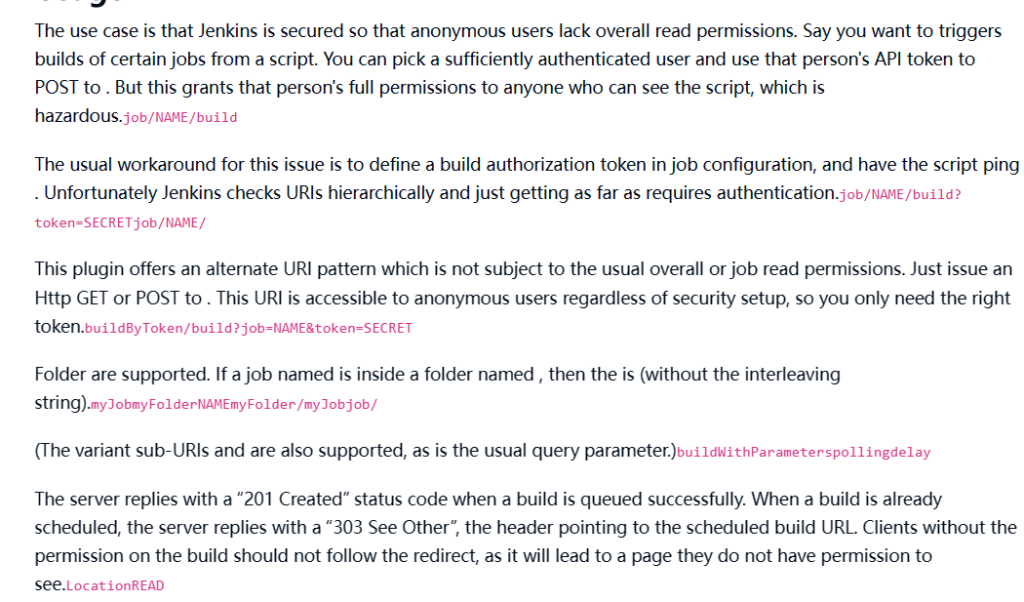
简要概括为
- 常规的解决方案是在作业配置中定义一个构建授权令牌,并让脚本通过这个令牌来触发构建。不过,Jenkins会按照层次结构检查URL,必须要有相应的权限才能到达指定的URL层次。
- 这里提到的插件提供了一个不同的URI模式,它不受常规权限的限制。你可以不考虑安全设置,只需要正确的令牌,就可以通过HTTP GET或POST请求来触发构建。
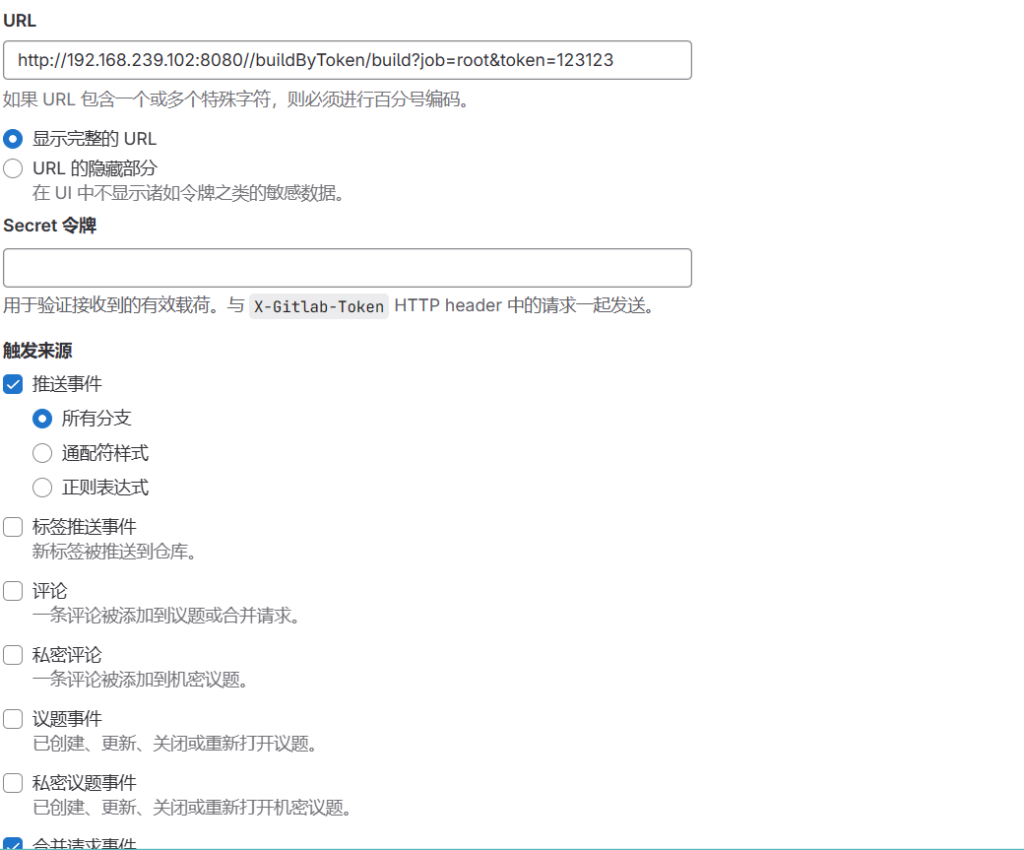
它给我们提供了buildByToken/build?job=NAME&token=SECRET这样一个url模式,把NAME换成你的job的名字,SECRET换成你刚刚设置的身份验证令牌。打开gitlab->设置->webhooks,类似与我这样进行填写,此处的触发来源可以按你的方式来勾选,当你勾选后的事件执行后,就会自动执行Jenkins中的构建操作。
Pre Steps
Pre Steps是在拉取源代码之后,主构建动作(如执行mvn package或make命令)之前执行的,主要用于清理工作目录、更新依赖、检出代码等准备工作。
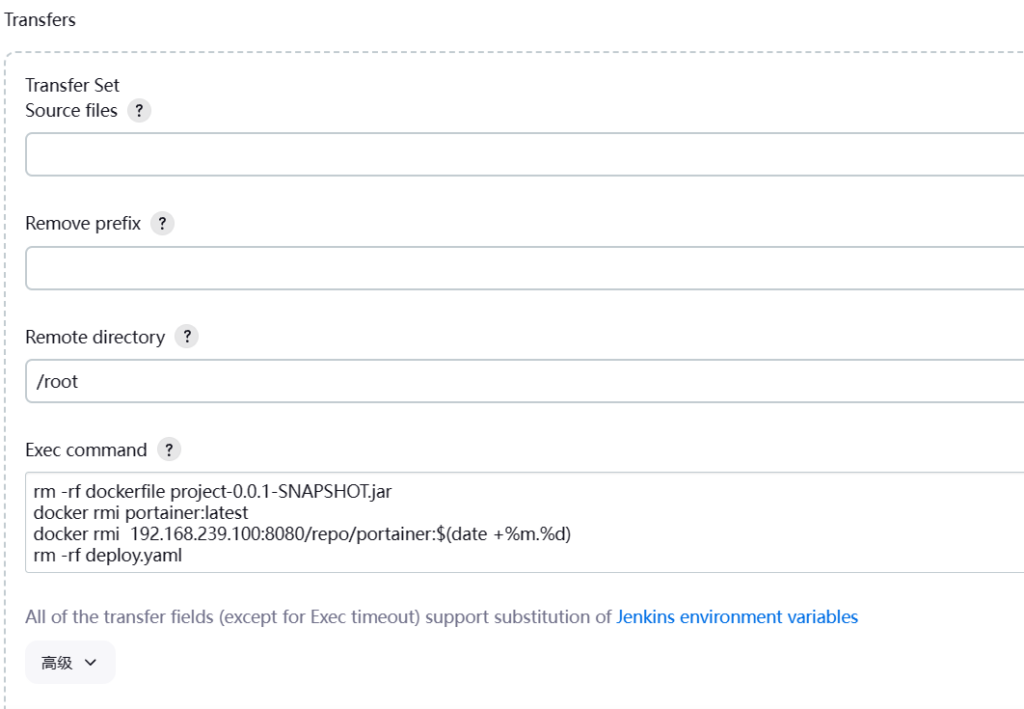
上面的ssh server name来自于system configuration中的publish over ssh中的ssh server name。
Build
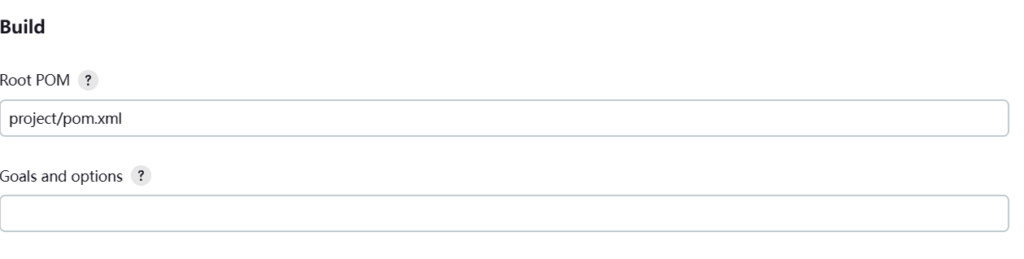
填写你的pom.xml对应的目录地址。
Post Steps
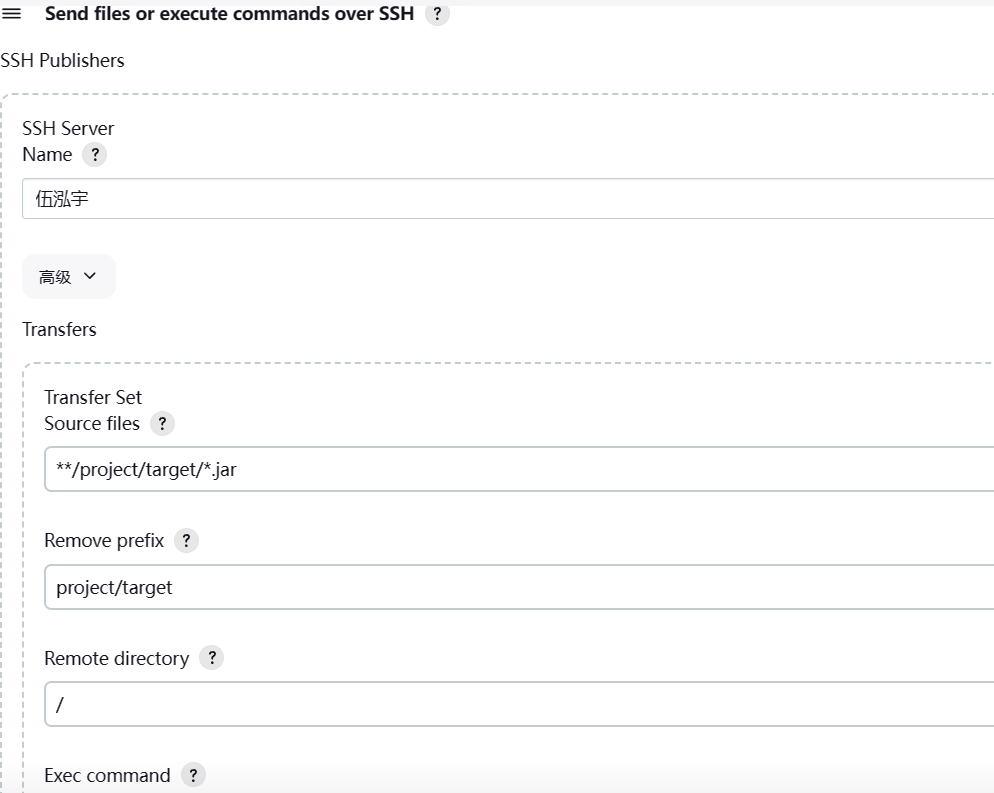
第一个step,用于实则我的jar包存放位置,Remove prefix用于去除jar包文件地址的前缀,让jar包文件直接位于~目录(这里的Remote Directory虽然写的是/目录,实际上就是宿主机上的~目录)。
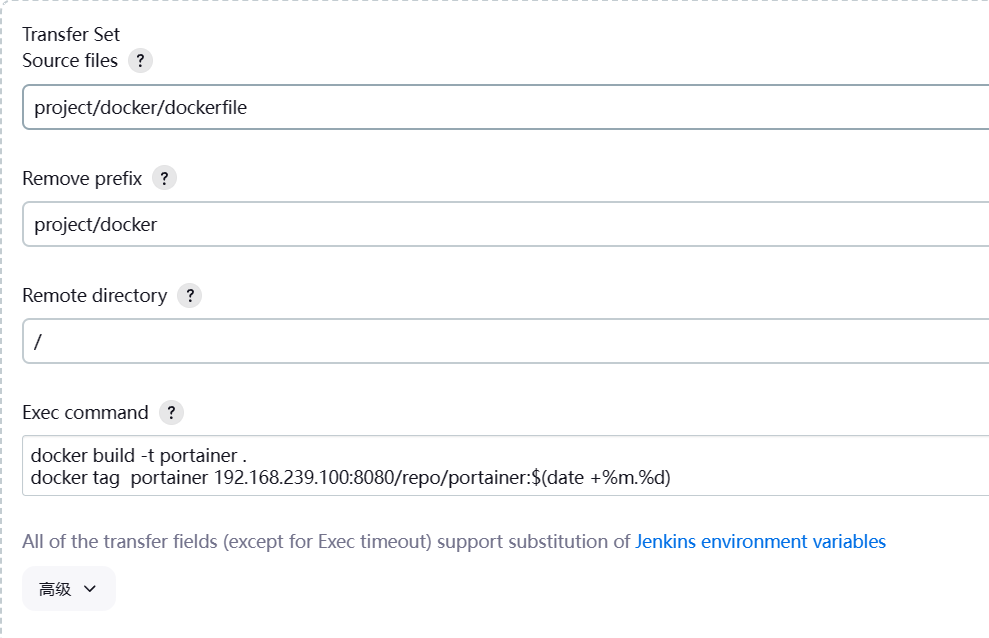
第二个step用于传输我的dockerfile文件并执行,把jar包打包到docker中
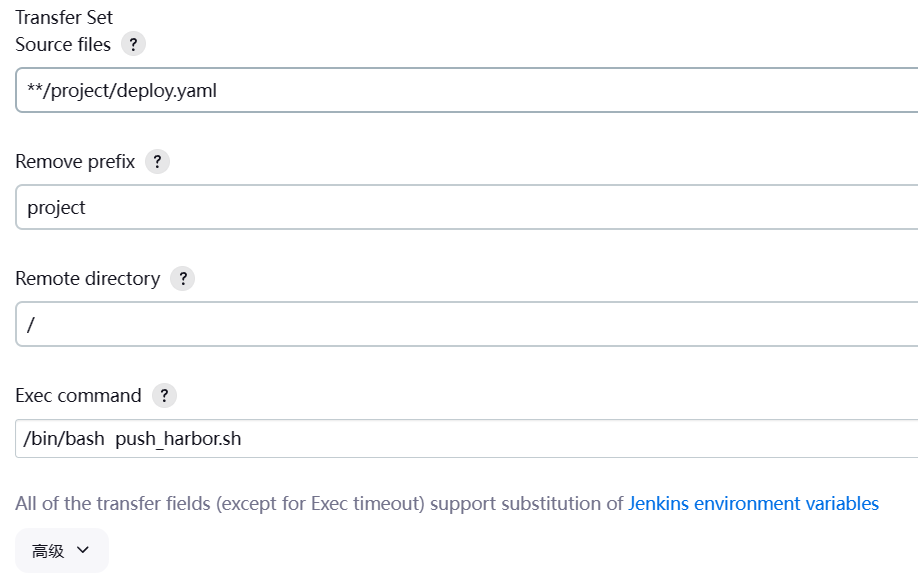
第三个step用于传输我的deploy.yml文件并执行把docker镜像推送到harbor私服的命令,并使用k8s对镜像进行集群化部署。
配置邮箱
进入到系统管理
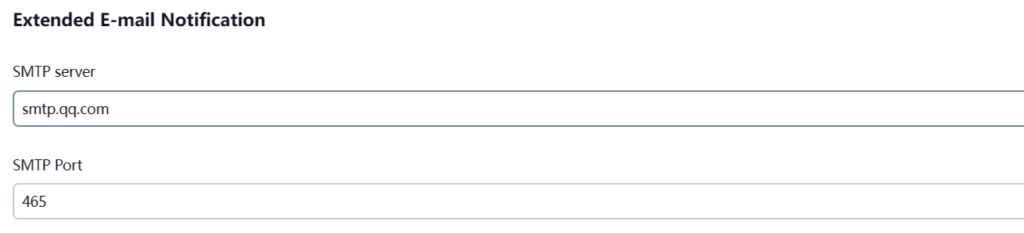
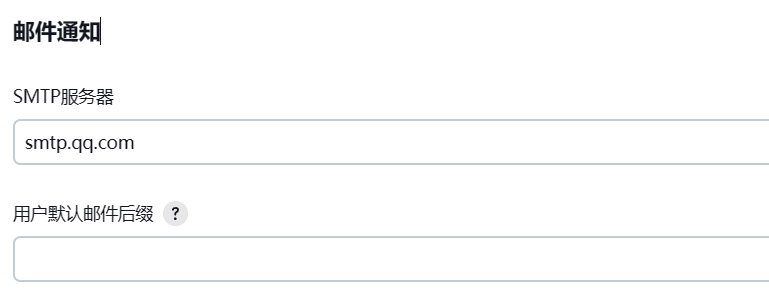
再进入项目设置->构建后操作->增加构建后操作步骤->Editable Email Notification->添加trigger
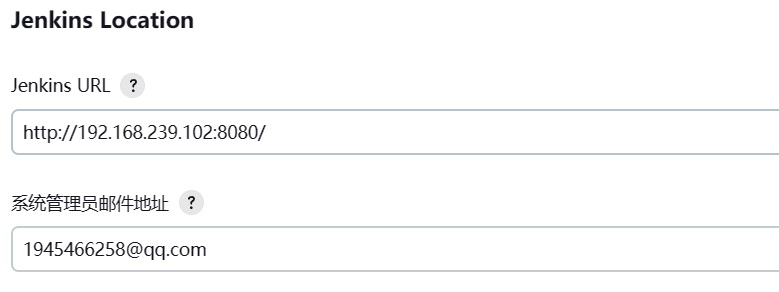
点击保存。
Jenkins集群/并发构建
集群化构建可以有效提升构建效率,尤其是团队项目比较多或是子项目比较多的时候,可以并发在多台机器上执行构建。
系统管理->节点和云管理->New Node
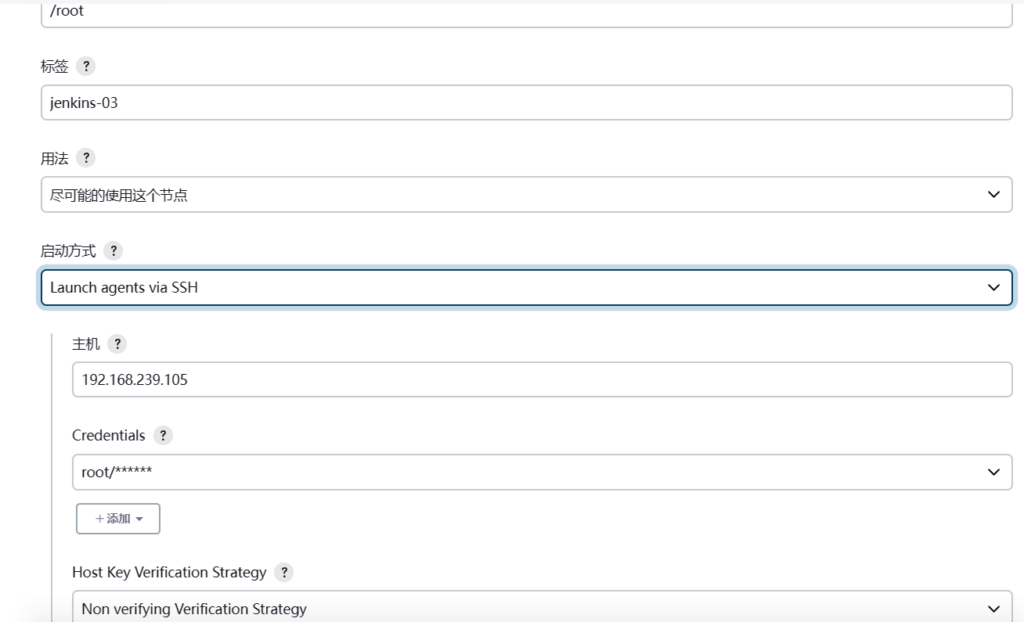
主机名填写你的克隆的Jenkins机器的IP地址,Credentials中的用户名与密码应与服务器的用户名和登录密码一致。然后再创建另一台Node,方法与上述一样。最后你的节点列表就会出现三个。
本次实验完成后将实现当你从某个IDE用git push到gitlab并合并代码后,通过webhook自动执行Jenkins的构建操作,在构建前自动进行清理操作,构建后将jar包打到docker容器并push容器到你的harbor私服库中,然后通过Kubernetes的Deployment控制器来集群化部署你的容器。最后发送结果信息到你的邮箱。
在CICD这里我遇见了太多太多的坑,十分庆幸自己硬着头皮把它们全部解决了。